How to use OneKey
OneKey is a multi-chain wallet with built-in support for Neurai (XNA). This guide uses the OneKey browser extension for Chrome as a software wallet, with no hardware device. You will install the extension, create or import a wallet, add the Neurai network, and receive and send XNA.
The steps and screenshots were made with OneKey extension 6.6.0 in a Chromium browser in October 2026. Later versions may move some buttons, but the flow should stay similar.
What you need
- Google Chrome, or another Chromium-based browser that can install extensions from the Chrome Web Store.
- Paper and a pen to write down your recovery phrase.
Step 1: Install the extension
- Open the official listing in the Chrome Web Store: OneKey: Secure Crypto Wallet.
- Check that you opened this link, or the one on OneKey's website, and not a copy found through an ad or a search result. Fake wallet extensions are a common way to steal funds.
- Click Add to Chrome, then Add extension.
- Pin OneKey to the toolbar: click the puzzle icon next to the address bar and click the pin next to OneKey. You will open the wallet from that icon.
After installing, OneKey opens its welcome screen. You can also open it at any time from the toolbar icon.

Figure 1. The OneKey welcome screen.
If you already have a recovery phrase, skip to Import an existing wallet.
Step 2: Create a new wallet
- Click Create new wallet. OneKey continues in a full browser tab.
- Click Create seed phrase wallet.
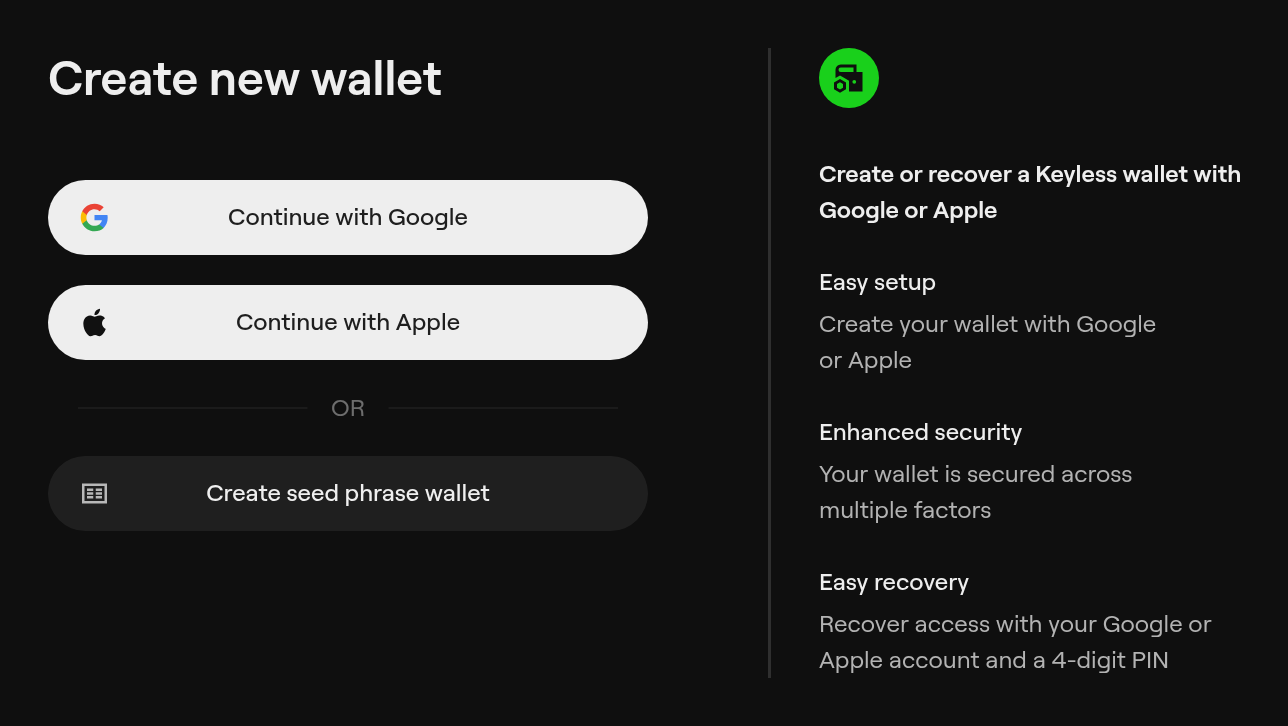 Figure 2. Choose "Create seed phrase wallet".
The Google and Apple buttons create a "Keyless" wallet that is recovered through that account. This guide uses a recovery phrase instead: a list of words you write down and keep yourself, which restores the wallet without depending on any account.
- Choose a passcode and enter it twice, then click Set passcode.
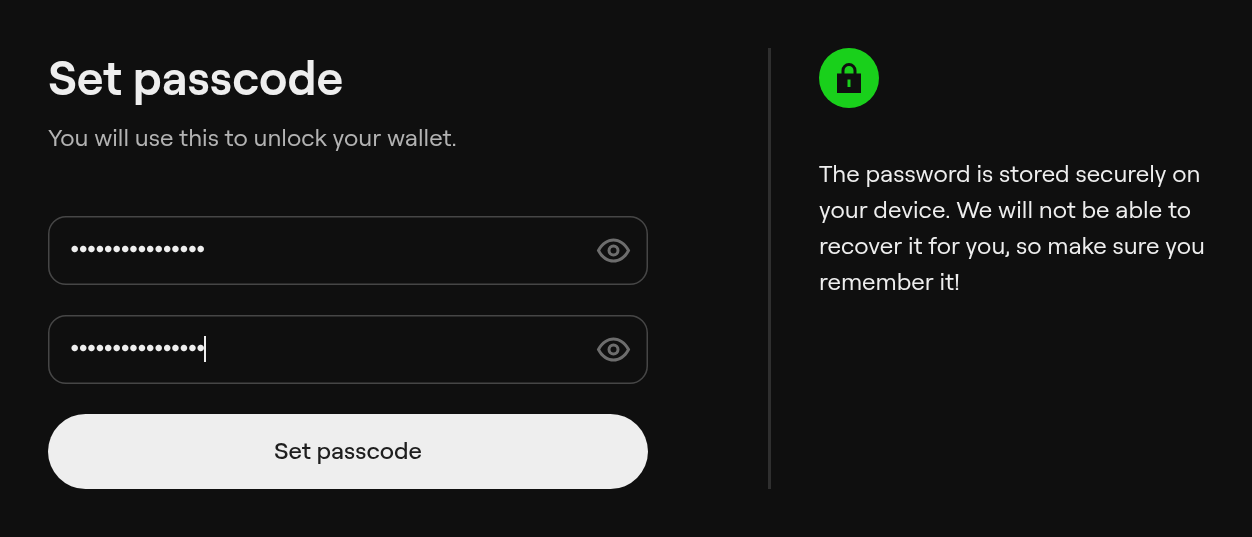 Figure 3. The passcode unlocks OneKey on this computer.
The passcode only unlocks the extension on this computer. It is not a backup, and OneKey cannot recover it for you. If you forget it, you restore the wallet from the recovery phrase.
- When OneKey shows Your wallet is ready, click Enter wallet. If it asks for a referral code, click Skip.
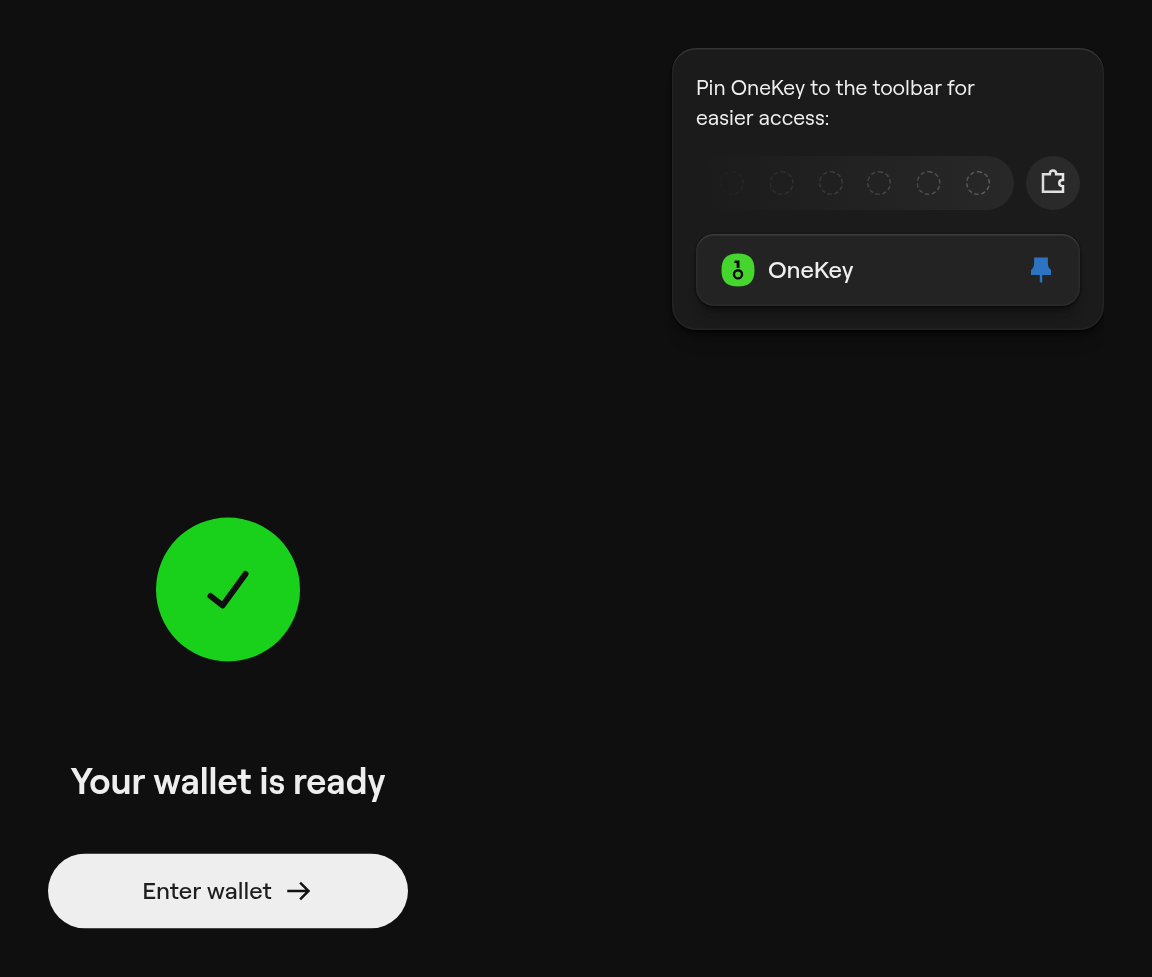 Figure 4. The wallet is created. The box at the top right is the reminder to pin OneKey to the toolbar.
Step 3: Back up your recovery phrase
Until you back up the wallet, the home screen shows a Backup your wallet card. Do it now, before you receive any funds.
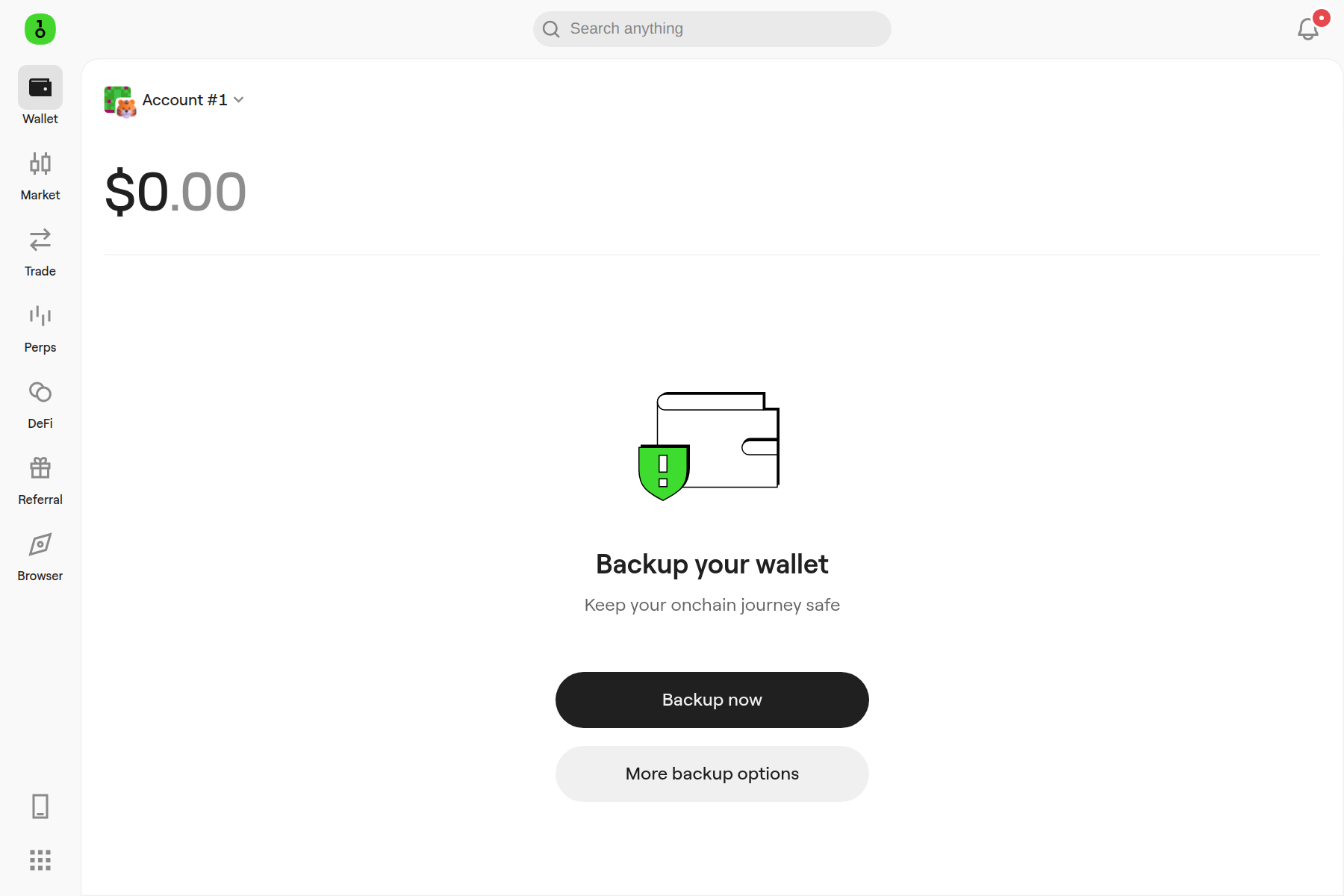
Figure 5. OneKey asks you to back up the new wallet.
- Click Backup now and enter your passcode.
- Read the warnings and click Show recovery phrase.
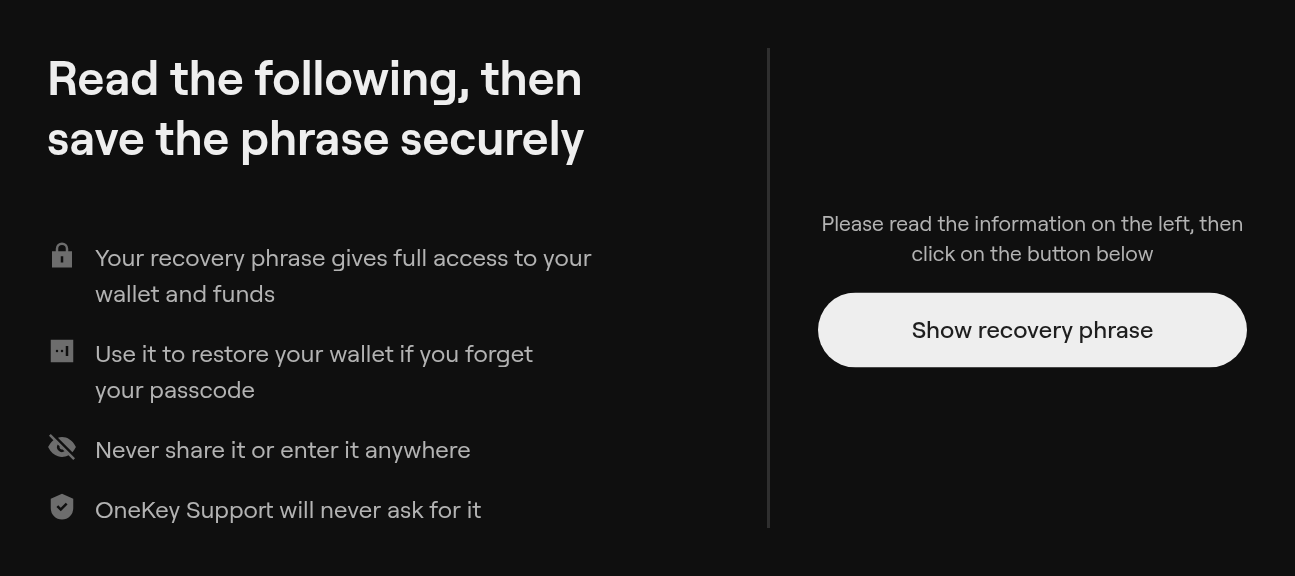 Figure 6. The words appear after you click "Show recovery phrase".
- Write the words on paper, in order, and follow the on-screen steps to finish the backup.
Anyone with these words can take your funds, and without them a lost or broken computer means lost funds.
- Write the words on paper, in the exact order. Never take a screenshot or a photo, and never store them in a file, an email or a cloud service.
- Keep the paper somewhere safe, ideally with a second copy in another place.
- Never type the words into a website or share them with anyone. OneKey support will never ask for them.
Import an existing wallet
If you already have a recovery phrase, you can import it instead of creating a new wallet.
- On the welcome screen, click Add existing wallet.
- Click Import phrase or private key.
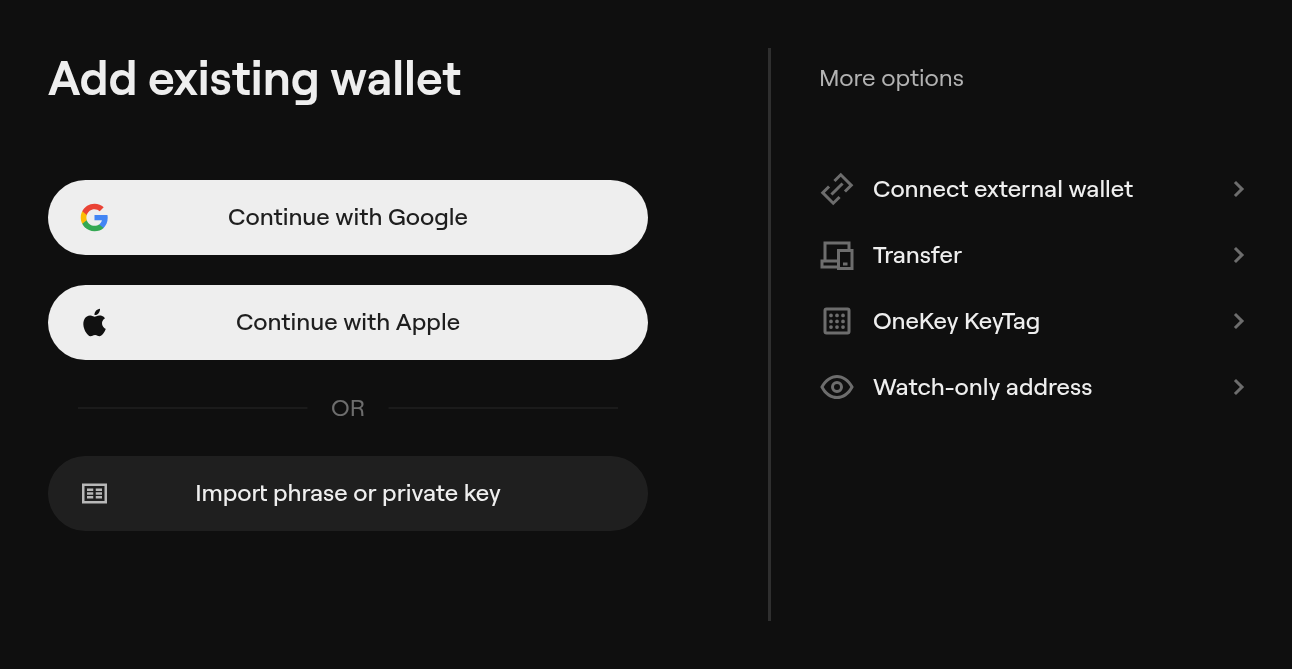 Figure 7. Choose "Import phrase or private key".
- Keep the Recovery phrase tab, choose the number of words (12, 18 or 24) and type each word in its box. Click Confirm.
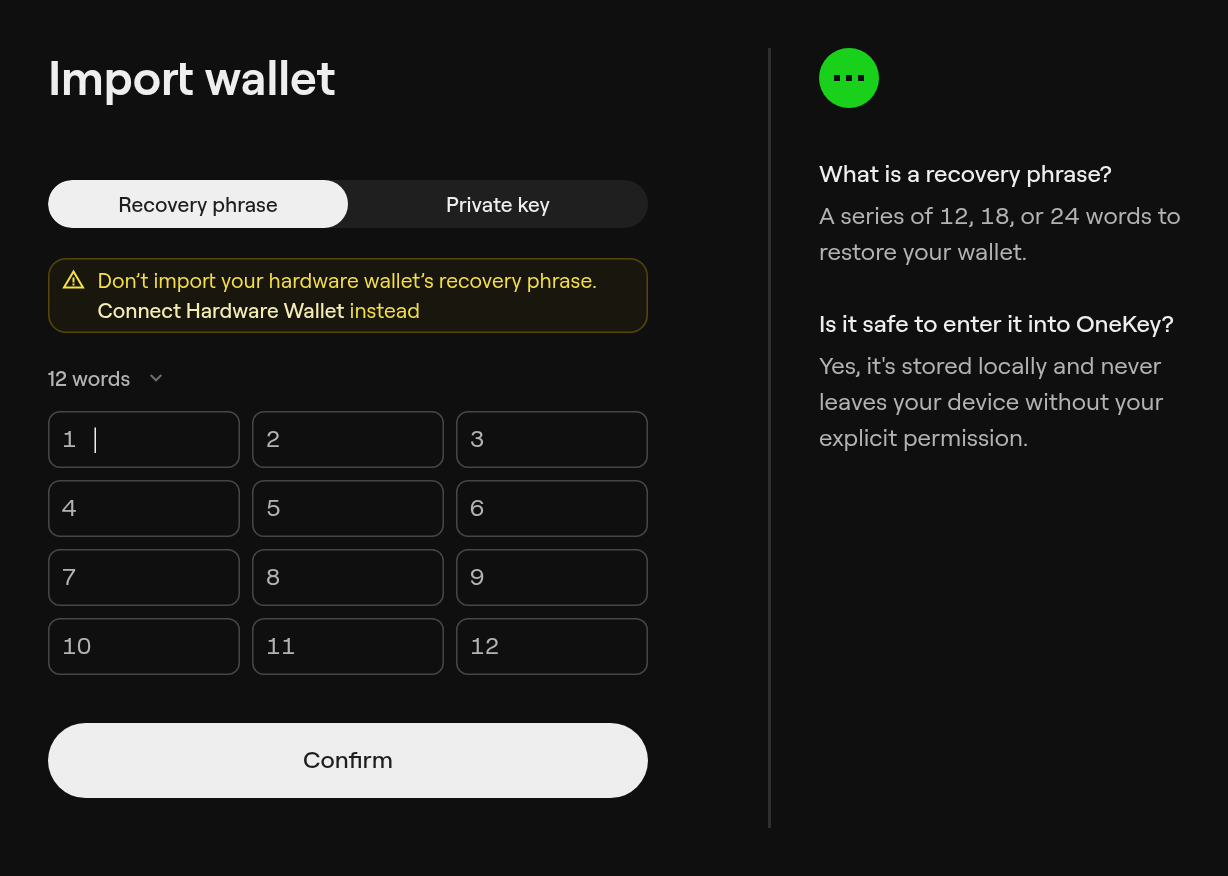 Figure 8. OneKey hides each word once you move to the next box.
- Set a passcode, as in Step 2.
As the yellow warning says, do not type the recovery phrase of a hardware wallet here. Use Connect hardware wallet instead, so the keys stay on the device.
OneKey derives Neurai addresses on the path m/44'/1900'/0'/0/i, the coin type registered for Neurai. A wallet that uses another path shows different addresses for the same words. For example, a Neurai Core node wallet uses m/44'/0'/0'. The funds are not lost: they are on the other path, in the wallet that created them. See Key derivation in the specs.
Step 4: Add the Neurai network
OneKey shows several networks together by default. Neurai has to be selected once.
- Click the network icons at the top right of the home screen (Figure 9).
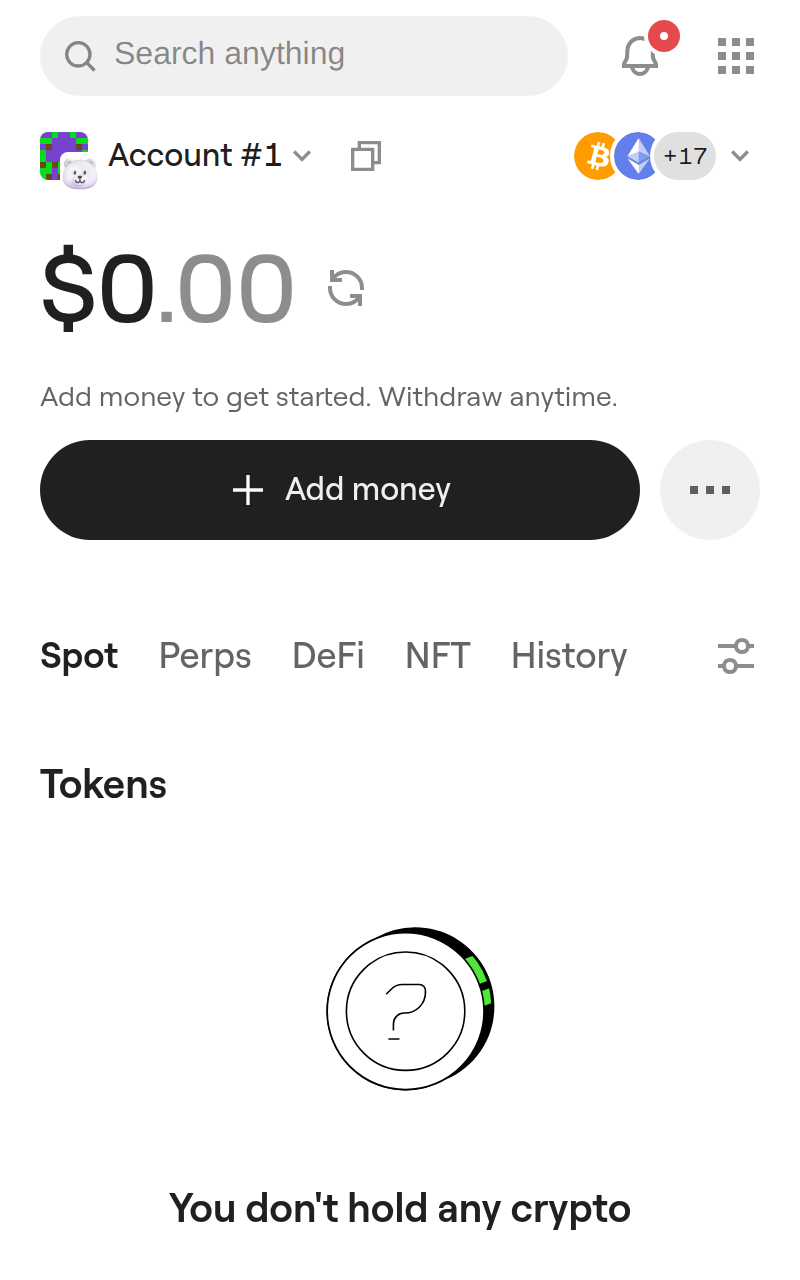
Figure 9. The network selector is the group of coin icons at the top right.
- In All networks, type
Neuraiin the search box and tick Neurai. - Click Create address & Apply. OneKey creates the Neurai address for the current account. That is why it says the account is "missing addresses on 1 networks".
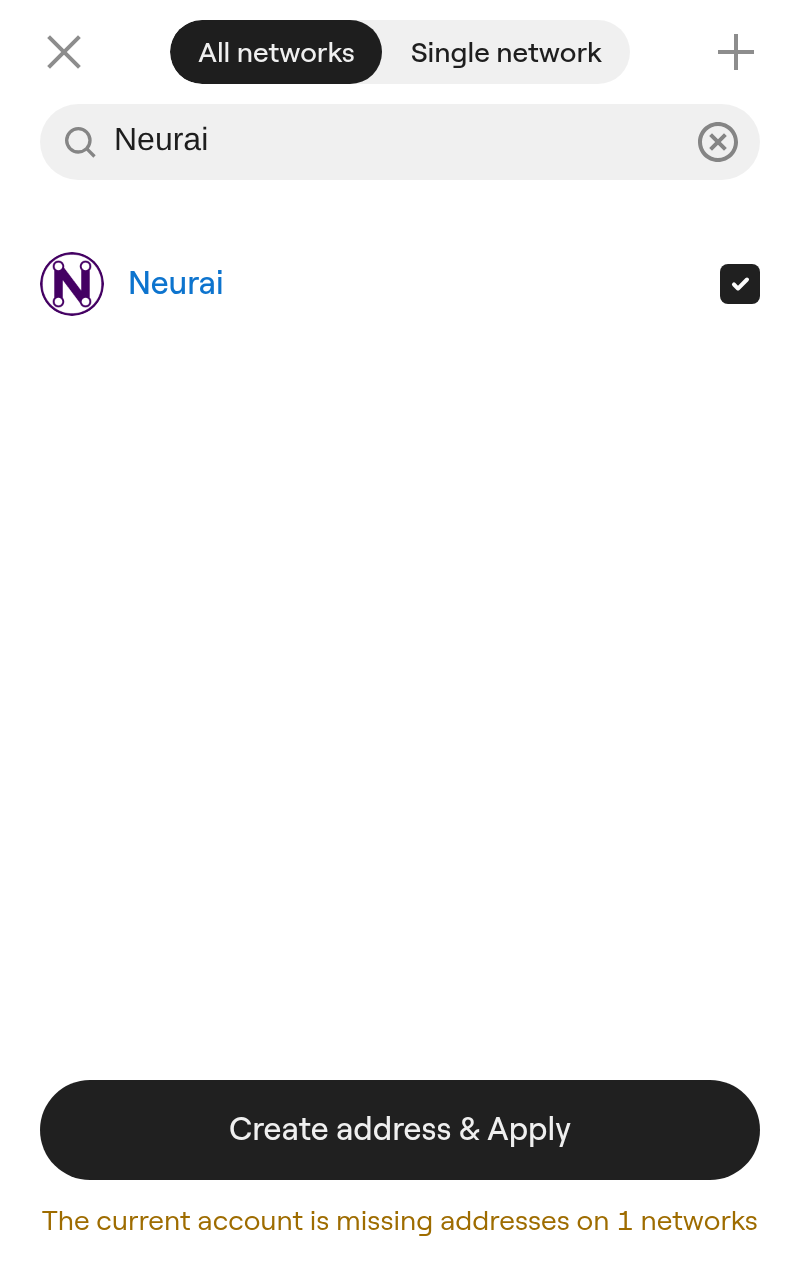
Figure 10. Search for Neurai, tick it and click "Create address & Apply".
- To work only with Neurai, open the network selector again, switch to Single network and choose Neurai. The home screen now shows XNA.
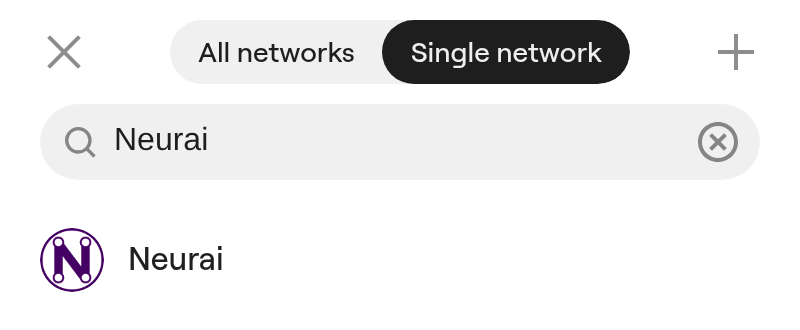

Figure 11. With Neurai selected, XNA appears in the token list.
Step 5: Receive XNA
- Click XNA in the token list. Its page shows Send, Receive and your address under My address.
- Click Receive. OneKey shows the address as text and as a QR code. Click the copy icon to copy it.

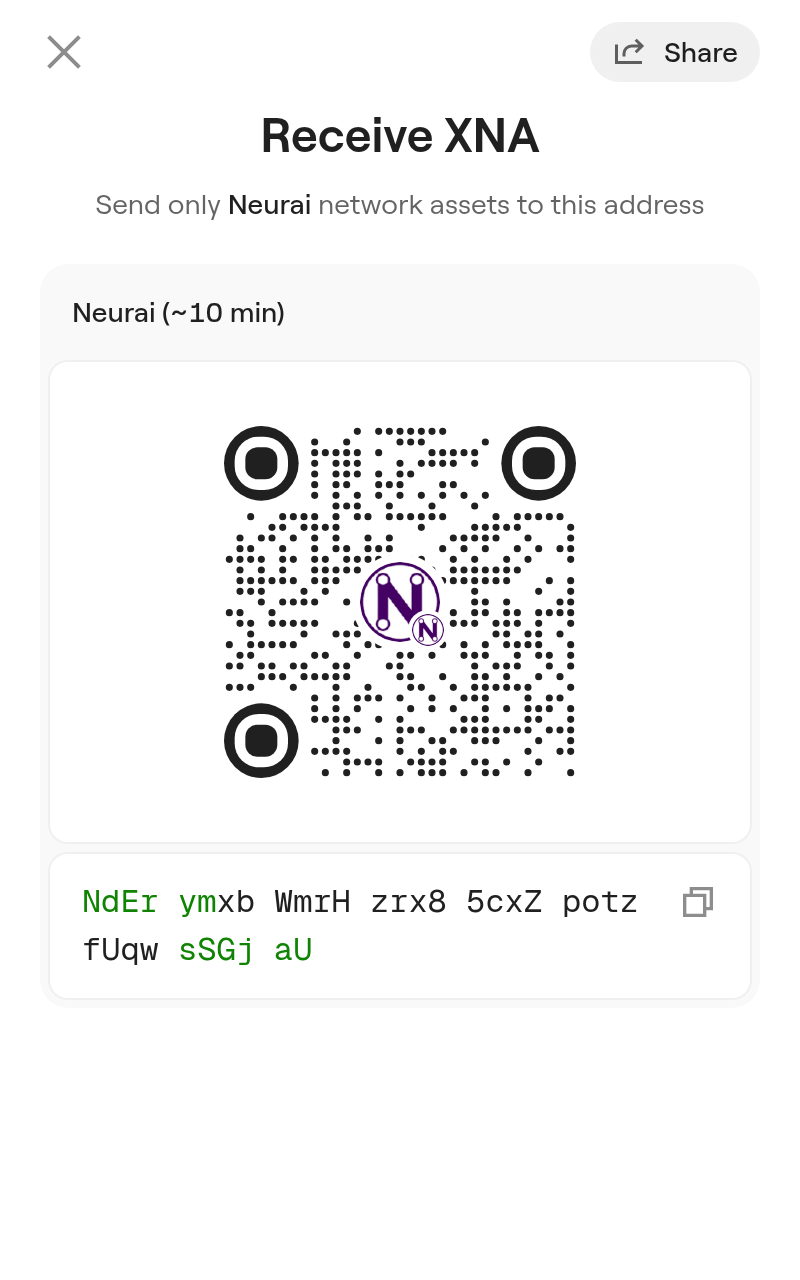
Figure 12. The XNA page and the Receive screen.
Neurai addresses in OneKey start with N. Send only XNA on the Neurai network to this address. When you paste it somewhere, check the first and last characters against the screen.
Step 6: Send XNA
- On the XNA page, click Send.
- Paste the recipient's Neurai address, or click Scan to read a QR code. Click Next.
- Enter the amount, or click Max to send the whole available balance. The minimum is 0.00000546 XNA.
- Click Preview, check the recipient, the amount and the network fee, and confirm.
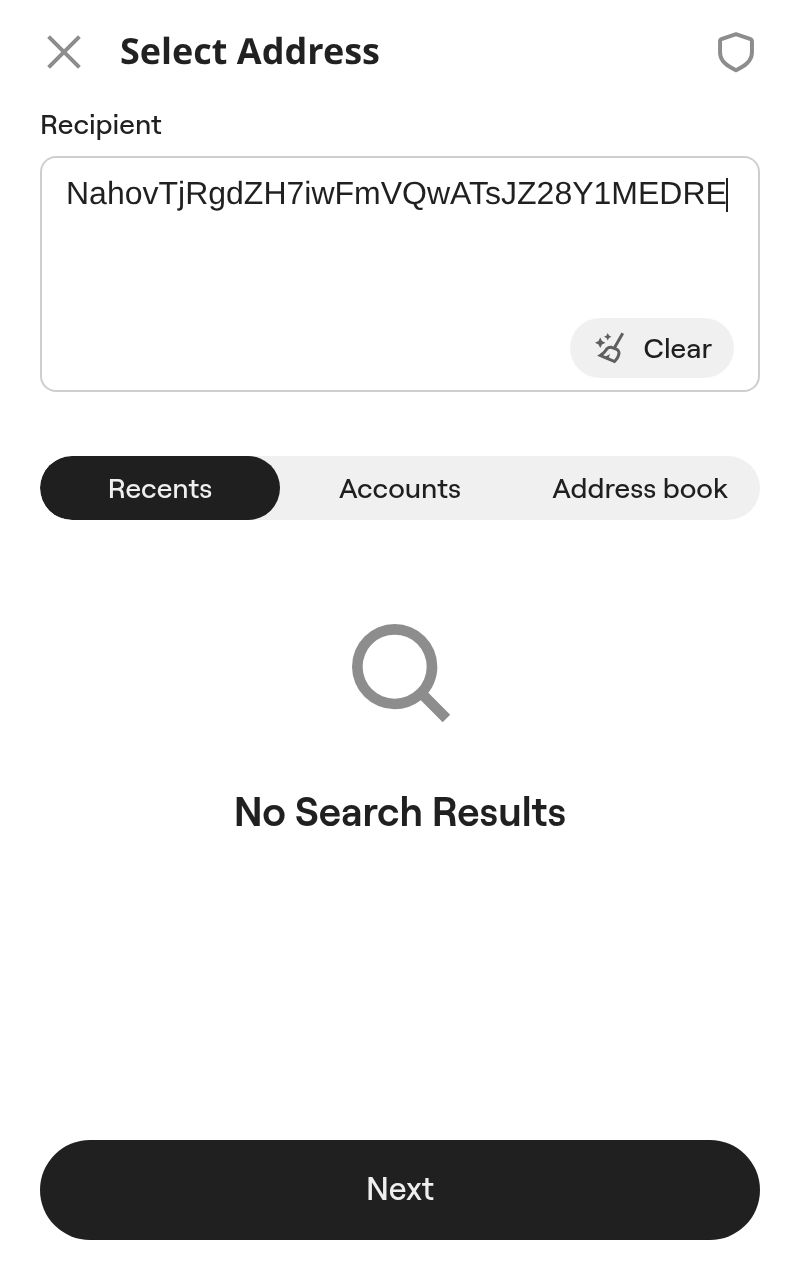
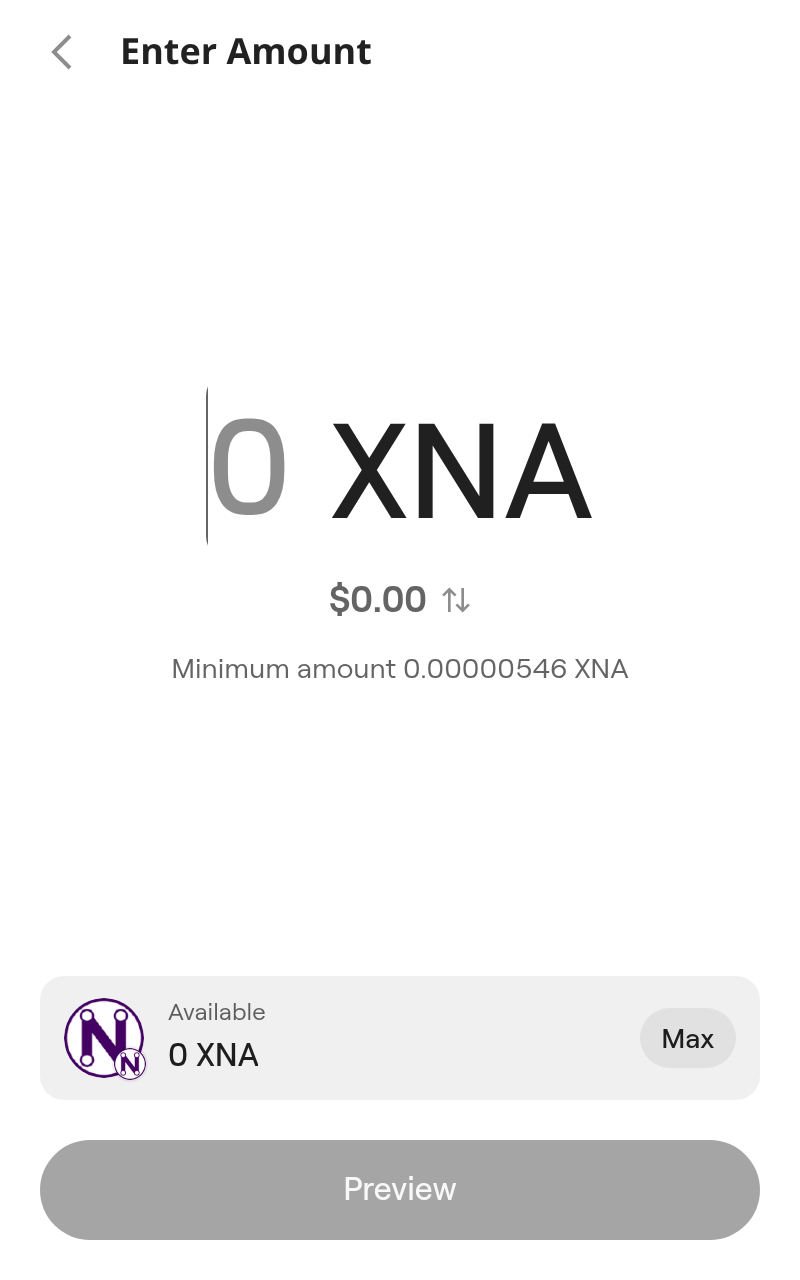
Figure 13. Choose the recipient, then the amount.
A sent transaction cannot be reversed. If you are sending to a new address for the first time, send a small amount first.
Security tips
- Install only from the official listing. Check the extension's name and the link before you install it.
- Use a strong passcode. It is what protects the wallet on this computer.
- Keep the recovery phrase offline. It is the only way to restore the wallet on another computer.
- Use a hardware wallet for larger amounts. A browser extension keeps the keys on your computer. A OneKey hardware wallet keeps them on the device, and the extension can connect to it with Connect hardware wallet.
Troubleshooting
I don't see XNA on the home screen. Add the Neurai network (Step 4). To see only Neurai, choose Single network → Neurai in the network selector.
I imported my words but the balance is zero. The funds may be on another derivation path. See the note in Import an existing wallet.
I forgot my passcode. Restore the wallet with your recovery phrase. The passcode cannot be recovered.